
A friend of mine dropped her phone in a lake on a camping trip and lost four years of her son’s baby photos in about three seconds. None of it was backed up. I think about that every time someone tells me they will set up a backup “later.” Your phone holds your contacts, your messages, your photos, and a hundred settings you fiddled with over the years, and all of it can vanish in an instant.
The good part is that backing up an Android phone is mostly a set-it-and-forget-it job. Below I will show you the reliable ways to protect everything, from Google’s built-in backup to your photos and the occasional copy on a computer, plus how to pull it all back onto a new phone. None of it takes more than a few minutes to switch on.

Why Bother Backing Up?
Nobody thinks about backups until the moment they need one, and by then it is too late. A cracked screen, a stolen bag, a software update gone wrong, a swim in a lake; any of them can lock you out of your own life. A scratch on the case you can live with. Lost photos usually cannot be bought back at any price.
There is a second payoff people forget: upgrading becomes painless. With a full backup, moving to a new phone takes minutes instead of an evening of retyping contacts and hunting for apps. The simple test is this. If your phone disappeared today, how quickly could you be back to normal? A good backup makes the answer “before lunch.”
The Google One Backup
Every Android phone signs in with a Google account, and that account comes with a free backup run through Google One. Open Settings, tap Google, then Backup. Make sure the Backup by Google One toggle is on, and tap Back up now if you want it to run this second instead of waiting for tonight.
This sweep grabs your apps and their data, call history, contacts, device settings, and text messages. It usually runs overnight while the phone charges on Wi-Fi, so you never notice it. The free tier gives you fifteen gigabytes shared across your Google account, which is plenty for settings and app data, and you can buy more if you ever bump into the ceiling.
Because the whole thing hangs off your Google account, that account is the lock on the front door. If someone gets into it, they reach your backups too. Our guide on how to create a strong password is worth ten minutes here, since it protects the one account everything else leans on.
Keeping Your Photos Safe
Photos and videos are the part people grieve when they are gone, and they get their own tool: Google Photos. Open the app, tap your profile picture, and check that Backup is on. From then on, every new photo and video quietly uploads whenever you are connected.
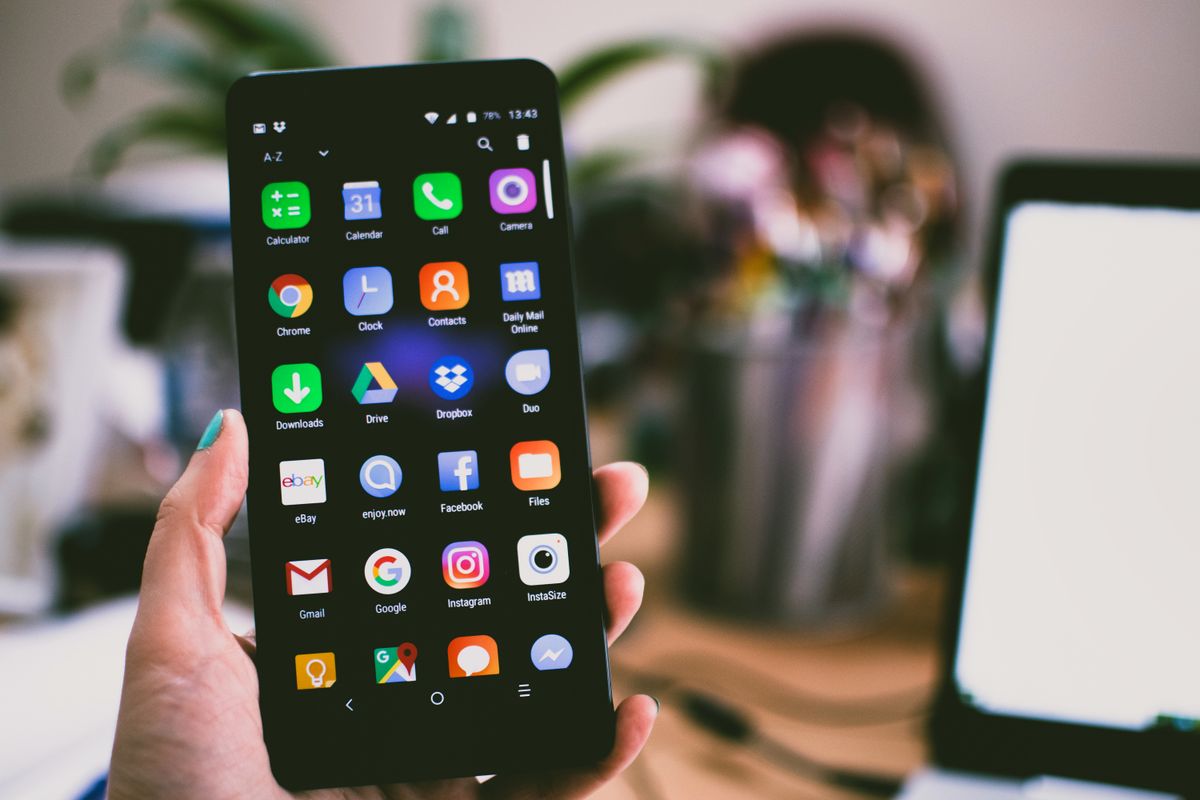
The beauty of it is reach. Sign in on any device and your whole library is there, searchable and downloadable, even if the phone that took the pictures is at the bottom of a lake. Just keep half an eye on your storage now and then, because a few thousand high-resolution photos eat into that fifteen gigabytes faster than you would expect.
Manufacturer and Manual Copies
Plenty of phone makers stack their own backup on top of Google’s. Samsung has Samsung Cloud and Smart Switch; other brands tuck similar tools into their settings. These can catch the odd thing Google misses, like a particular home screen layout, so turn one on if your phone offers it.
For real peace of mind, I also like a manual copy now and then: plug the phone into a computer with a USB cable and drag your photos, videos, and documents into a folder. It is old-fashioned, but a local copy is a second net, especially for big video files. If you want the step-by-step, our guide on how to transfer photos from your phone to a computer walks through every method.
Getting It All Back
Restoring is the moment all that quiet preparation pays off. Set up a new Android phone and the setup wizard asks if you want to copy data from a backup. Sign in with the same Google account, pick your most recent backup, and the phone pulls down your apps, settings, and data on its own. Open Google Photos, sign in, and your pictures stream back too.
Skipped that step during setup? You can still restore some things later from Settings, or just reinstall apps from the Play Store, which remembers everything you have ever downloaded. The smoother your backup routine, the less you do by hand when you switch phones.

Habits Worth Keeping
A backup is only worth anything if it is recent, so let the automatic features do their job: charge the phone overnight on Wi-Fi and they take care of themselves. About once a month, glance at the backup screen in Settings to confirm the last one actually finished. It takes ten seconds and it is the difference between “backed up” and “I thought it was.”
For the files you truly cannot lose, keep copies in more than one place. Cloud backup plus the occasional drag-to-a-computer means a rare failure of one system does not wipe you out. While you are tidying up, a phone that runs cleaner backs up more reliably too; our guide on how to save battery on Android covers the background-app housekeeping that keeps everything humming.
A Few Last Words
Backing up is one of those chores that feels skippable right up to the second you would give anything to have done it. Switch on Google One backup, turn on Google Photos, and make the odd manual copy, and you have covered nearly every disaster that realistically happens. Do it once this week. My friend would tell you the same thing, probably while scrolling through the photos she wishes she still had.
Quick Recap: Back up your Android phone
Once you understand the basics, you will find that back up your Android phone is easier than it first appears. Take it step by step, and back up your Android phone quickly becomes part of your routine. The key to back up your Android phone is a little regular practice rather than trying to learn everything at once. Many beginners are surprised at how approachable back up your Android phone can be with the right guidance.
Remember that back up your Android phone is a skill, and every skill improves the more you use it. If you ever feel stuck, revisit the earlier sections, because back up your Android phone builds on a few simple ideas. There is no need to rush; back up your Android phone rewards patience and a willingness to explore. Keep this guide handy whenever you need a quick reminder about back up your Android phone.
With these fundamentals in place, back up your Android phone will feel far more natural over time. Do not be afraid to experiment, since hands-on practice is the fastest route to back up your Android phone. Before long, back up your Android phone will be second nature and save you real time. The steps above cover everything a beginner needs for back up your Android phone. For more detailed reference, the official Android Help Center is a trustworthy resource.

Daniel Vivone is a technology writer who specializes in making complex tech simple for everyday readers. At iotechblog, he covers digital security, artificial intelligence, smartphone tips, and beginner-friendly software tutorials, turning confusing concepts into clear, practical, step-by-step guides. Passionate about helping people use technology more safely and confidently, Daniel focuses on real-world advice that anyone can follow, no technical background required.