
If your phone dies before the day is over, learning how to save battery on Android can completely change your routine. The good news is that you do not need a new phone to save battery on Android, just a few smart settings and habits that anyone can apply in minutes.
In this guide you will discover ten practical tips to save battery on Android, why your battery drains so fast, and which settings make the biggest difference. Every tip is explained simply, so you can start extending your battery life right away.
Why Your Android Battery Drains So Fast
Before you learn how to save battery on Android, it helps to understand what drains it. Bright screens, background apps, location services, and constant syncing are the biggest culprits. Each one quietly sips power even when you are not actively using your phone.
Background apps do not just drain power, they also pile up cached files that eat into your space over time. If your phone feels both slow and thirsty for charge, our guide on how to free up storage shows you how to clear out the clutter that often goes hand in hand with poor battery life.
Older batteries also hold less charge over time, which is normal. But in most cases, the real problem is settings and apps rather than the battery itself. By targeting the heaviest power users, you can save battery on Android without giving up the features you love.
Constant syncing in the background is a major hidden drain, especially photo and file backups. Understanding how cloud storage works helps you schedule backups for when your phone is charging, so syncing never ambushes your battery during the day.
To go deeper, read our related guide in our smartphone tips section, and for an authoritative overview see the official Android help center.
It is also worth knowing that battery percentage is an estimate, not a perfect measurement. After a major update or a long period of heavy use, the reading can become inaccurate. Letting the battery run through a normal full cycle occasionally helps the phone recalibrate and report a more honest figure.
Sluggish performance and fast battery drain often share the same root causes, just on different devices. If your computer suffers too, the same tidy-up mindset applies, and our walkthrough on how to speed up a slow Windows 11 PC uses a similar approach to reclaim performance.
Adjust Your Screen Settings
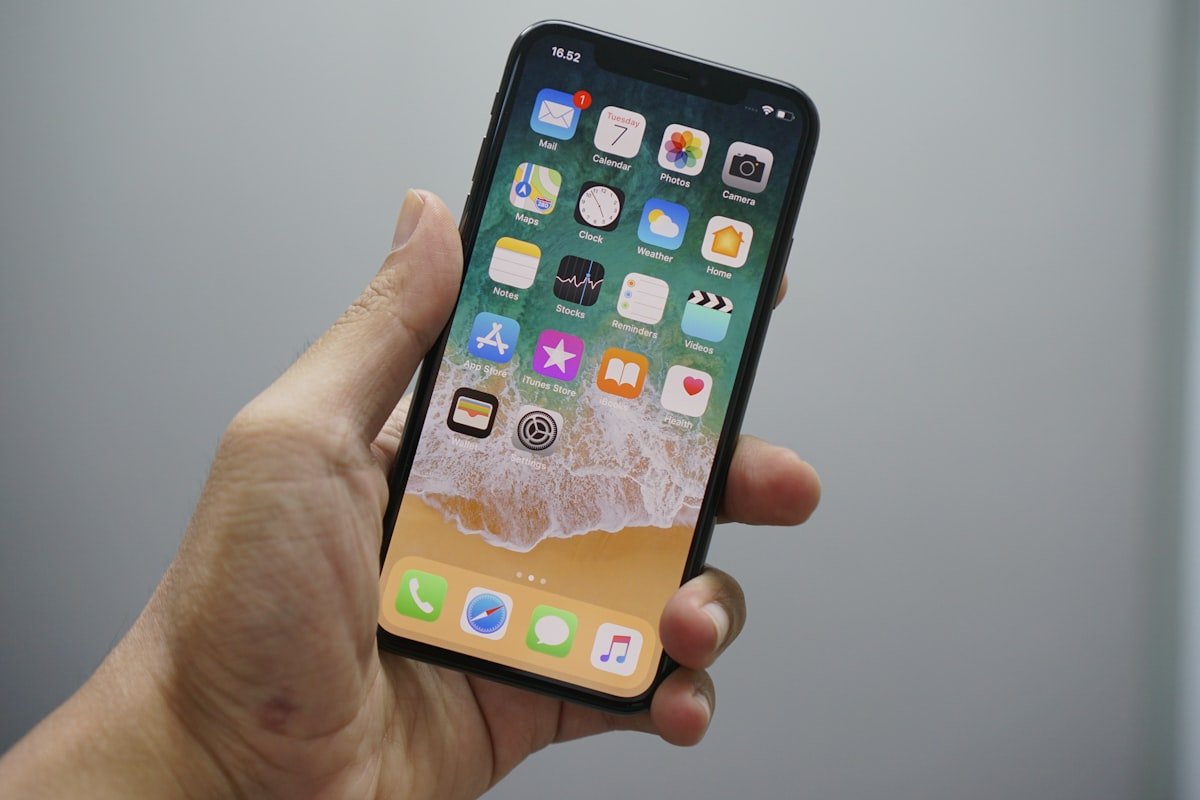
The display is usually the single biggest battery drain, so this is the first place to save battery on Android.
The display is almost always the single biggest power consumer on any modern phone, often accounting for a larger share of drain than every other component combined. That means small tweaks here pay off more than anywhere else. Lowering brightness even slightly, shortening the screen timeout, and switching to a darker wallpaper all add up. If you want to save battery on Android with minimal effort, mastering your screen settings is the highest-impact place to begin.
Lower Your Screen Brightness
Turn down brightness or enable adaptive brightness so your phone adjusts automatically to your surroundings. A dimmer screen uses far less power and is easier on your eyes indoors.
Dark mode is more than a style choice on phones with OLED or AMOLED screens. Because those displays switch off individual pixels to show true black, a dark theme can noticeably reduce power draw during everyday use. Pair it with adaptive brightness so your phone reacts to your surroundings automatically, and you will save battery on Android without ever thinking about it.
Many people leave brightness at maximum out of habit, but most screens are perfectly readable at 40 to 50 percent indoors. Adaptive brightness learns your preferences over time, so after a few days it will set the perfect level automatically and you will rarely need to touch the slider again.
Shorten Screen Timeout
Set your screen to turn off after 15 or 30 seconds of inactivity. This small change prevents your display from staying lit when you set the phone down, helping you save battery on Android throughout the day.
Use Dark Mode
On phones with OLED screens, dark mode turns off individual pixels for black areas, which saves real power. Switch it on in your display settings for an easy win.
Beyond the battery benefit, dark mode reduces eye strain in low light and looks sleek. Most popular apps now include their own dark theme, so once you enable the system-wide setting, check your favorite apps for an extra dark option too.
Control Apps and Background Activity
Apps running in the background are a hidden drain. Managing them is one of the most effective ways to save battery on Android.
It is worth checking your battery usage screen every couple of weeks. A single misbehaving app can quietly consume a huge share of your power, and spotting it early lets you restrict or remove it before it ruins your battery life. Android groups usage by app, so the worst offenders are easy to identify at a glance.
- Check Settings, then Battery, to see which apps use the most power.
- Restrict background activity for apps you rarely open.
- Disable auto-sync for accounts you do not need updated constantly.
- Uninstall apps you never use to stop them running entirely.
- Close power-hungry games fully instead of leaving them paused.

Manage Connectivity Features
Wireless features constantly search for signals, which uses power. Turning off what you are not using is a quick way to save battery on Android.
Switch off Bluetooth, Wi-Fi, and location services when you do not need them. In areas with weak signal, your phone works harder to stay connected, so enabling airplane mode in dead zones can preserve a surprising amount of charge.
Notifications also play a role. Every time an app wakes your screen to show an alert, it uses a little power. Turning off non-essential notifications not only reduces distractions but also helps you save battery on Android across a busy day full of messages and updates.
Widgets and live wallpapers look attractive but constantly refresh in the background. If you are serious about battery life, switch to a static wallpaper and keep only the widgets you genuinely use on your home screen.
Use Built-In Battery Saver Tools
Android includes powerful tools to save battery on Android automatically, and they require almost no effort to set up.
Turn On Battery Saver Mode
Battery Saver limits background activity, reduces performance slightly, and dims animations to stretch your remaining charge. You can set it to turn on automatically at a chosen percentage so you never have to think about it.
Charge Smartly
Avoid letting your battery drain to zero or stay at 100 percent for long periods. Keeping it roughly between 20 and 80 percent helps preserve long-term battery health and means you save battery on Android over the life of the phone.
Heat is the enemy of batteries. Charging your phone inside a thick case or leaving it in direct sunlight generates heat that wears the battery faster. Whenever possible, charge in a cool place and remove bulky cases if your phone feels hot to the touch.
Long-Term Habits to Keep Your Battery Healthy
Saving power day to day is only half the story. To save battery on Android over months and years, build a few simple long-term habits that protect the battery itself.
Keep your phone updated, because system updates often include battery optimizations and bug fixes. Avoid cheap, uncertified chargers that can deliver unstable power. And restart your phone occasionally to clear stuck processes that quietly drain power in the background. Together these habits keep your battery healthy and your phone running longer between charges.
Finally, remember that battery health is a long game. Avoiding extreme temperatures, not letting the phone sit at zero percent for long, and keeping it between roughly twenty and eighty percent when you can all help the battery last for years rather than months. Combine these habits with the daily tips above and you will save battery on Android both today and well into the future, getting far more life out of every charge and out of the device itself.
Final Thoughts
Learning how to save battery on Android is mostly about controlling your screen, apps, and connectivity. Start with lower brightness, shorter screen timeout, and Battery Saver mode, then restrict background apps and charge smartly. Apply these ten tips and you will save battery on Android every single day, keeping your phone alive from morning until night without reaching for a charger.

Daniel Vivone is a technology writer who specializes in making complex tech simple for everyday readers. At iotechblog, he covers digital security, artificial intelligence, smartphone tips, and beginner-friendly software tutorials, turning confusing concepts into clear, practical, step-by-step guides. Passionate about helping people use technology more safely and confidently, Daniel focuses on real-world advice that anyone can follow, no technical background required.