
Over the years, we sign up for countless websites and then forget about most of them. Each one may still hold your name, email, photos, and browsing habits. Learning how to delete your data from a website puts you back in control of your personal information. This guide explains the practical steps to delete your data from a website, whether you are closing an old account or simply cleaning up your online footprint.
You do not need to be a technical expert to do this. In most cases you can delete your data from a website through the account settings, and where that is not possible, you can send a request directly to the company. Let us walk through the different options so you can choose the one that fits your situation best.

Why It Matters to Delete Your Data From a Website
Every account you leave behind is a small risk. If that company suffers a data breach, your details could be exposed even though you have not used the site in years. Choosing to delete your data from a website you no longer use shrinks the number of places that hold your information, which is one of the simplest ways to protect yourself online.
It also reduces spam and unwanted marketing. Old accounts often keep sending emails or sharing your details with partners. Cleaning them up is a natural companion to other habits, like learning how to How to Protect Your Privacy Online, that together keep your digital life tidy and safer.
There is a peace of mind that comes from knowing fewer companies hold your information. Data you never share cannot be leaked, sold, or stolen. Every account you close is a permanent reduction in your exposure, unlike a password change that only helps until the next breach.
Start With the Account Settings
The first place to look is the site’s own settings. Log in, then open the account, profile, or privacy section. Many services include a “Delete account” or “Close account” option, sometimes tucked at the very bottom of the page. When you use it, the site should remove your profile and the data tied to it, though some information may linger for a short legal period.
Before you delete your data from a website, download anything you want to keep, such as photos or documents. Once the account is gone, that content is usually gone for good. Take a screenshot or export your files first so you are not caught out later by something you needed.
Deletion is often not instant. Many sites place your account in a “deactivated” state for a grace period of a few days or weeks before erasing everything, in case you change your mind. Read the on-screen notice carefully so you know exactly when the removal becomes final and whether you need to avoid logging back in during that window.
- Log in and open Settings or Privacy
- Look for Delete or Close account
- Download anything you want to keep first
- Confirm the deletion and check your email for a confirmation
When There Is No Delete Button
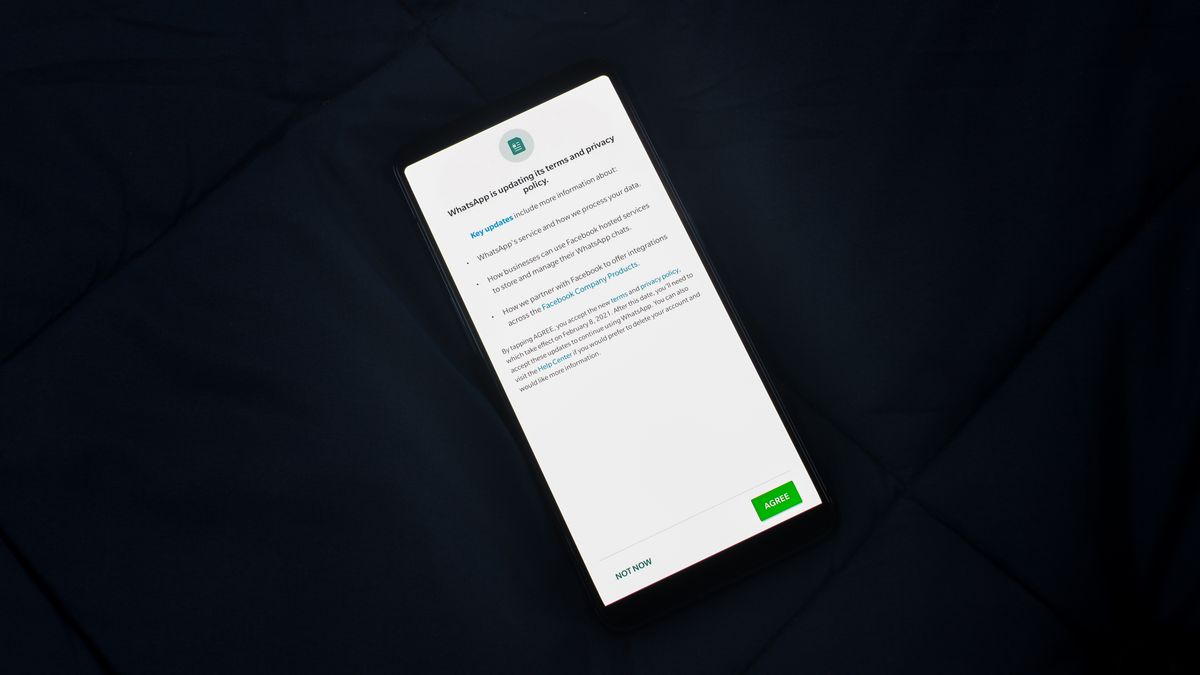
Some websites make it hard to find the option, or hide it entirely. If you cannot delete your data from a website through the settings, look for a privacy policy link, usually in the footer. It often lists an email address or a form for data requests. In many regions, companies are legally required to honor a request to remove your information.
Write a short, clear message stating that you want your account closed and your personal data deleted. Keep a copy of what you send and any reply you receive. This paper trail is useful if you need to follow up, and it shows you took the proper steps to delete your data from a website that would not let you do it directly.
If a company ignores your request, you may be able to escalate it to a data protection authority in your country. Keeping the dates and copies of your messages makes any complaint far stronger, and the mere mention of your legal rights often prompts a faster response from the company.
Watch Out for Fake Deletion Traps
Scammers sometimes create fake “data removal” services or emails that promise to erase your information for a fee. These can be a trick to collect even more of your details. Never pay a random service to delete your data from a website; the real process is free and handled by the site itself or its official support channel.
If you get an unexpected email claiming to help you remove data, treat it with suspicion. Our guide on how to How to Spot Phishing Emails explains the warning signs, so you can tell a genuine message from a scam designed to steal more of your information.

Extra Steps for a Clean Footprint
After you remove an account, search your own name in a search engine to see what else is out there. You may find old profiles or listings you forgot about. Contact each site the same way to request removal. It takes patience, but every account you close is one less place that can leak your information.
Finally, consider using unique passwords and a manager so future cleanups are easier. Learning how to How to Create a Strong Password means you always know which sites you have joined. For your legal rights around data deletion, the Wikipedia article on the right to be forgotten is a helpful, neutral overview.
Quick Recap
To delete your data from a website, start in the account settings and look for a delete or close option, downloading anything you want to keep first. If there is no button, use the privacy policy contact to send a written request, and keep a record of it. Avoid paid “removal” services and watch for phishing. With these steps, you can delete your data from a website and take real control of your online privacy.

Daniel Vivone is a technology writer who specializes in making complex tech simple for everyday readers. At iotechblog, he covers digital security, artificial intelligence, smartphone tips, and beginner-friendly software tutorials, turning confusing concepts into clear, practical, step-by-step guides. Passionate about helping people use technology more safely and confidently, Daniel focuses on real-world advice that anyone can follow, no technical background required.