
If you take pictures on your phone, learning to use Google Photos is one of the smartest first steps you can take. Google Photos is a free app that stores, organizes, and backs up your pictures automatically, so you never lose a memory again. In this simple guide, you will learn how to use Google Photos from the very beginning, even if you have never opened the app before. We will walk through setup, everyday features, sharing, and editing, one small step at a time.
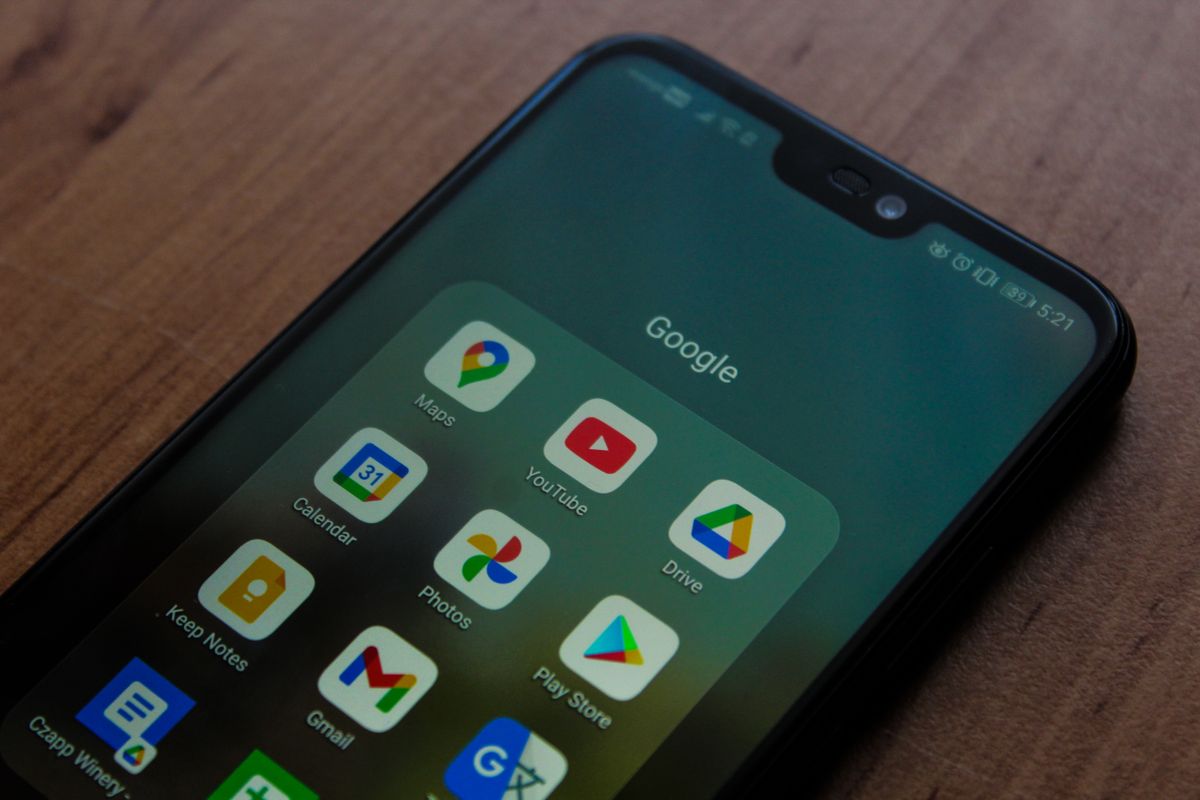
Google Photos works on both Android and iPhone, and it also works in any web browser on a computer. Once you turn on backup, every new photo you take is saved to the cloud within minutes. That means if your phone is lost or broken, your pictures are still safe on Google’s servers and on any other device where you sign in. Many people who are new to this app are surprised by how little effort it takes to use Google Photos and keep years of memories protected.
Why You Should Use Google Photos
The biggest reason to use Google Photos is peace of mind. Phones get dropped, stolen, and replaced all the time, but your memories should not disappear with them. When your library lives in the cloud instead of on a single device, a lost phone becomes an inconvenience rather than a disaster. If you want to understand where the cloud keeps everything, our guide on what cloud storage is explains it in plain language.
Another strong reason is smart organization. The app automatically groups pictures by date, place, and even the people and pets in them. You can type “beach” or “birthday” into the search bar and instantly see matching photos, with no manual tagging required. This kind of search feels almost magical the first time you try it, and it only gets better as your collection grows.
- Free backup for photos and videos across all your devices
- Powerful search that finds pictures by people, places, and things
- Automatic albums, collages, and highlight videos created for you
- Easy sharing with family and friends through a single link
- Access from any phone, tablet, or computer with your account
How to Set Up and Use Google Photos Step by Step
Getting started is quick. Install the app from the Google Play Store or the Apple App Store, then sign in with your Google account. The first time you open it, the app will ask whether you want to turn on backup. Choose “Backup on,” pick your preferred upload quality, and connect to Wi-Fi so you do not use mobile data. From there, the app quietly saves each new picture in the background.
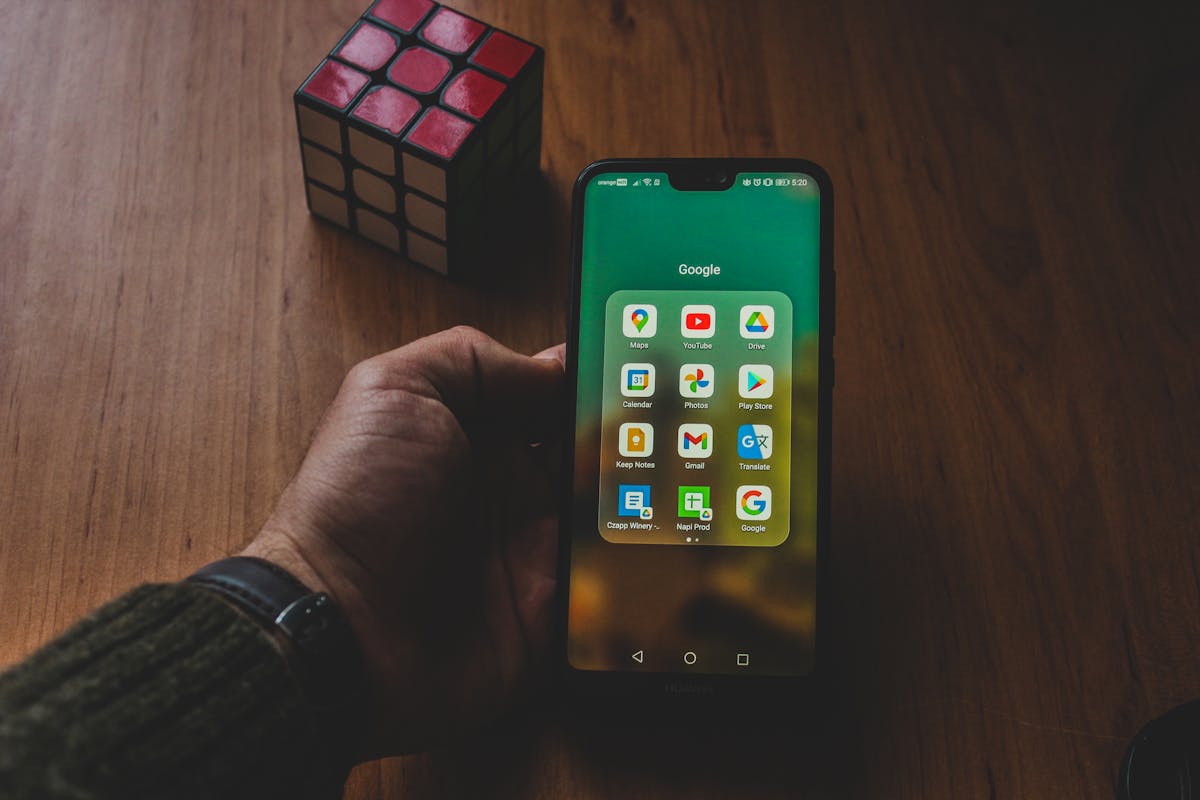
After backup is on, take a moment to explore the three tabs at the bottom of the screen. The Photos tab shows your timeline, the Search tab helps you find anything fast, and the Library tab holds albums, favorites, and the trash folder. Spend five minutes tapping around, and you will quickly feel comfortable. Do not worry about breaking anything, since deleted items sit in the trash for sixty days before they are removed for good.
To reclaim space on your phone, open the profile menu and choose “Free up space.” This removes local copies that are already backed up, keeping the originals safe in the cloud. If your phone is short on room, our tips on how to free up storage pair nicely with this feature and can make a slow device feel new again.
Sharing and Editing Photos the Easy Way
Sharing is refreshingly simple. Select one or more pictures, tap the share icon, and create a link you can send by text, email, or chat. When you use Google Photos to share, you can also build a shared album that updates automatically whenever you or a family member adds new pictures, which is perfect for trips, weddings, and family events. Everyone sees the same growing collection without emailing files back and forth.
The built-in editor is friendlier than most. Tap a photo, choose Edit, and try the automatic enhance button for an instant improvement. You can crop, straighten, adjust brightness, and apply filters without any special skills. For a wider look at organizing your whole device, see our guide on setting up a new phone, which covers the first steps every owner should take.
If you ever want the official details on storage limits, quality settings, and account options, Google keeps clear help pages that are updated regularly. You can read them straight from the Google Photos Help Center whenever a question comes up, so you are never stuck guessing.
Quick Recap
To wrap up, remember that when you use Google Photos you get free backup, smart search, and easy sharing in one convenient place. Set up the app, turn on backup, and let it organize your memories automatically while you get on with your day. The more you use Google Photos, the more it does for you, from surfacing forgotten memories to freeing up phone space. Give it a week, and you will wonder how you ever managed without it. Start today, use Google Photos with confidence, and keep every single picture safe for years to come.

Daniel Vivone is a technology writer who specializes in making complex tech simple for everyday readers. At iotechblog, he covers digital security, artificial intelligence, smartphone tips, and beginner-friendly software tutorials, turning confusing concepts into clear, practical, step-by-step guides. Passionate about helping people use technology more safely and confidently, Daniel focuses on real-world advice that anyone can follow, no technical background required.