
Your phone holds your photos, messages, banking apps, and email, so protecting it matters. The easiest first step is to set up a screen lock, which keeps strangers out if your phone is lost or stolen. In this simple guide, you will learn how to set up a screen lock on both Android and iPhone in just a few minutes. No technical experience is needed to follow along, and every phone made in the last several years supports these options.
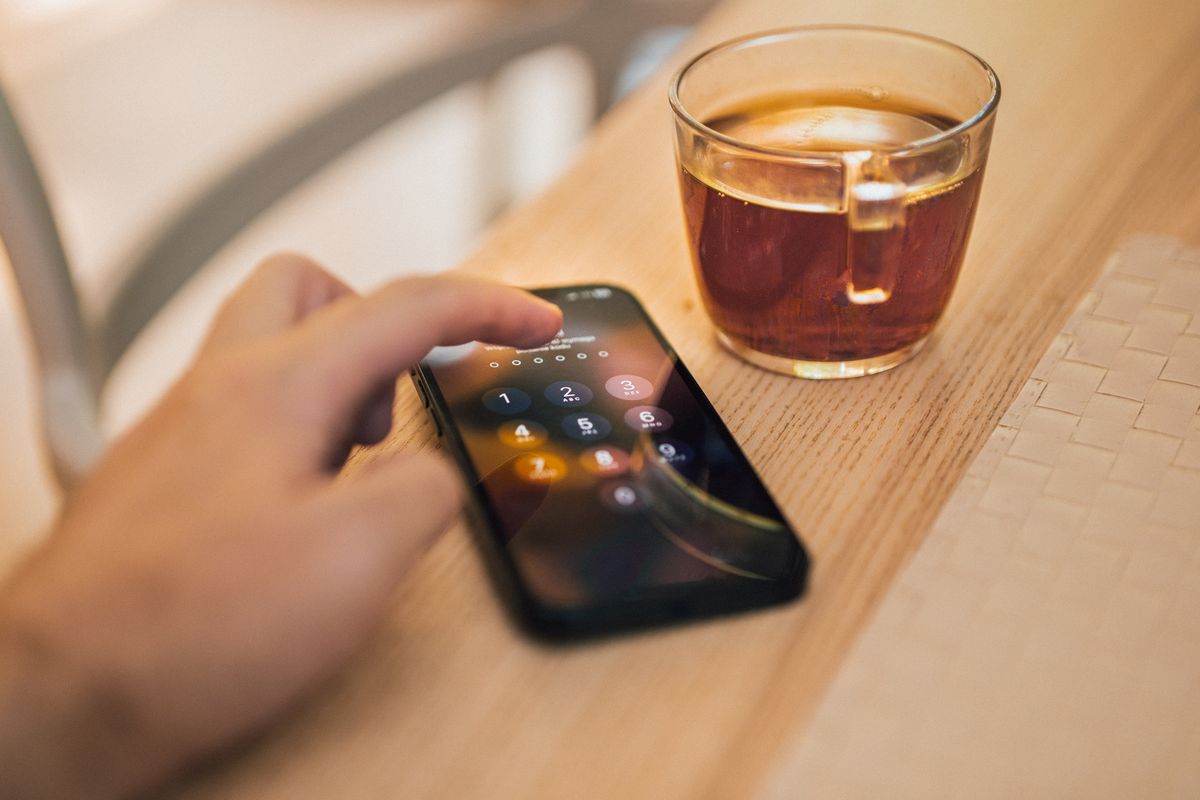
A screen lock is the barrier between your private life and anyone who picks up your phone. Without one, a lost device is an open book that anyone can flip through in seconds. With one, your data stays sealed behind a PIN, pattern, fingerprint, or face scan that only you can pass. Modern phones even encrypt their storage once a lock is active, so the files cannot be read by plugging the phone into a computer.
Why You Should Set Up a Screen Lock
Phones are lost and stolen every single day, and an unlocked one gives a stranger instant access to your accounts. When you set up a screen lock, even a thief who has your phone in hand cannot open it. This single step protects your privacy more than almost anything else you can do in five minutes, and it works around the clock without any effort once it is on. It pairs perfectly with our guide on how to protect your privacy online.
A lock also protects you from casual snooping by people around you. Whether you leave your phone on a desk or hand it to a child to play a game, a lock keeps your private messages and apps out of reach. It also prevents accidental purchases and settings changes, which parents of curious toddlers will especially appreciate.
- Blocks strangers from opening a lost or stolen phone
- Protects banking, email, and social media apps
- Keeps private photos and messages away from prying eyes
- Enables extra features like secure payments and app locks
How to Set Up a Screen Lock Step by Step
On Android, open Settings, tap Security or Lock screen, and choose Screen lock. Pick a PIN, password, or pattern, then follow the prompts to confirm it. To set up a screen lock with your fingerprint or face as well, add your biometric data in the same menu for quick, secure unlocking.
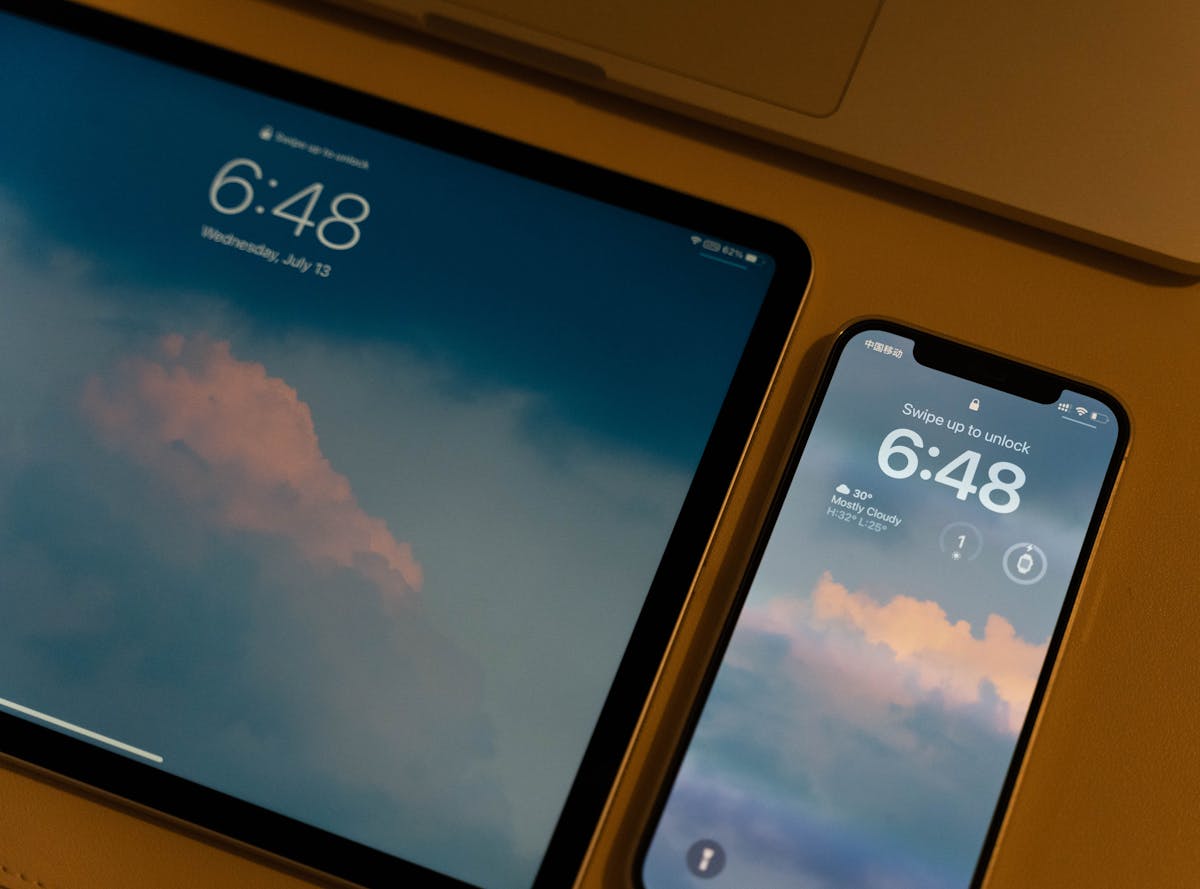
On an iPhone, open Settings, tap Face ID & Passcode or Touch ID & Passcode, and choose Turn Passcode On. Enter a strong six-digit code, then register your face or fingerprint. It only takes a minute to set up a screen lock this way, and your phone will lock automatically after a short idle time. Biometrics make daily unlocking effortless, so strong security no longer means constant typing.
Choose a code that is hard to guess. Avoid birthdays, repeated digits, and simple sequences like 1234 or 0000, since these are the first combinations anyone would try. The same thinking that goes into a good passcode applies to your accounts, so our guide on setting up two-factor authentication is a natural next step for stronger security.
Getting the Most From Your Screen Lock
After you set up a screen lock, adjust the auto-lock timer so the screen locks quickly when idle, ideally within thirty seconds to a minute. A short timer means your phone protects itself even if you set it down and walk away. Balance this against convenience; thirty seconds is a good middle ground for most people who check their phone often.
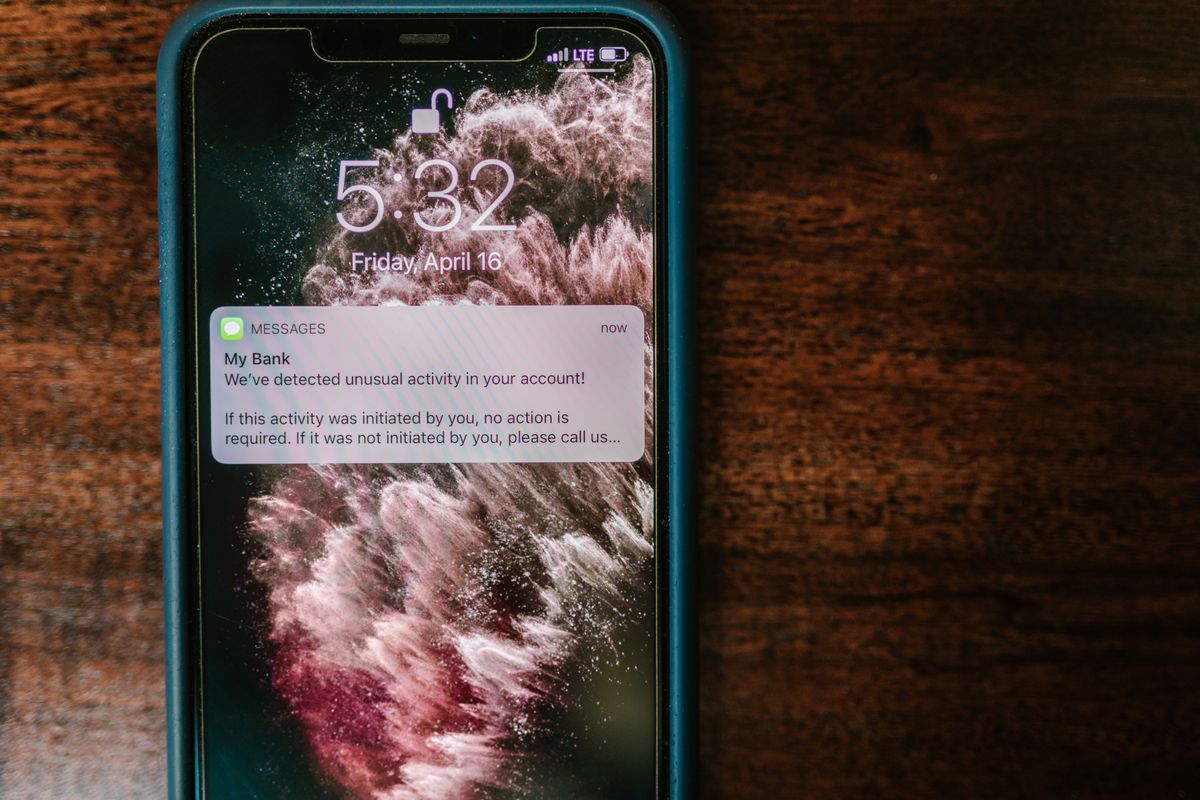
You can also hide notification previews on the lock screen so private messages, verification codes, and email subjects do not show up for others to read while your phone sits face up on a table. Most phones let you show a generic “notification” label instead of the full content, which is a smart middle ground. If you just bought a device, our guide on setting up a new iPhone walks through these privacy settings from the very start.
For official steps tailored to your device, Apple provides clear instructions online. You can read them directly at the Apple Support page on passcodes for iPhone users.
Quick Recap
To wrap up, the fastest way to protect your phone is to set up a screen lock using a PIN, password, or biometric unlock. On Android, use the Security menu; on iPhone, use Face ID and Passcode settings. Choose a hard-to-guess code, keep your auto-lock timer short, and hide notification previews for extra privacy. Pair your lock with two-factor authentication for even stronger protection. Take two minutes today to set up a screen lock, and give yourself real peace of mind.

Daniel Vivone is a technology writer who specializes in making complex tech simple for everyday readers. At iotechblog, he covers digital security, artificial intelligence, smartphone tips, and beginner-friendly software tutorials, turning confusing concepts into clear, practical, step-by-step guides. Passionate about helping people use technology more safely and confidently, Daniel focuses on real-world advice that anyone can follow, no technical background required.