
Is your phone warning you that it is running low on space? Learning how to free up storage on Android is easier than you think, and you do not need to delete your favorite photos or apps to do it. In this simple guide, you will learn several safe ways to free up storage on Android so your phone runs smoothly again. Every step below works on most modern Android phones.

When your storage fills up, apps slow down, photos fail to save, and updates refuse to install. The good news is that most of the space is taken by things you no longer need, such as old downloads, cached files, and forgotten apps. Clearing them out is quick and completely reversible in most cases. Think of it like tidying a cluttered desk: nothing important gets thrown away, but suddenly there is room to work again. Most people recover several gigabytes on their very first cleanup.
Why You Need to Free Up Storage on Android
A full phone is a slow phone. When there is no room left, the system cannot create the temporary files it needs, so everything feels sluggish. If your device already feels slow, our guide on how to speed up a slow Android phone works hand in hand with the tips here.
Freeing space also protects your memories. When storage runs out, new photos and videos simply fail to save, and you may not even notice until a special moment is already gone. Keeping some room free means your camera is always ready for the next photo or video. It also means important app updates, which often include security fixes, can download and install without failing halfway through.
- Delete unused apps you have not opened in months
- Clear cached files that build up quietly over time
- Move photos and videos to the cloud for safekeeping
- Empty the downloads folder of files you no longer need
- Remove duplicate and blurry photos to reclaim space
Simple Ways to Free Up Storage on Android
Start with the built-in tool. Open Settings, tap Storage, and let your phone show you what is using the most space. Android will suggest items you can safely remove, and tapping through them is the fastest way to reclaim room without guessing. The bars and charts make it obvious whether photos, apps, or system files are the real culprit, so you spend your effort where it counts.
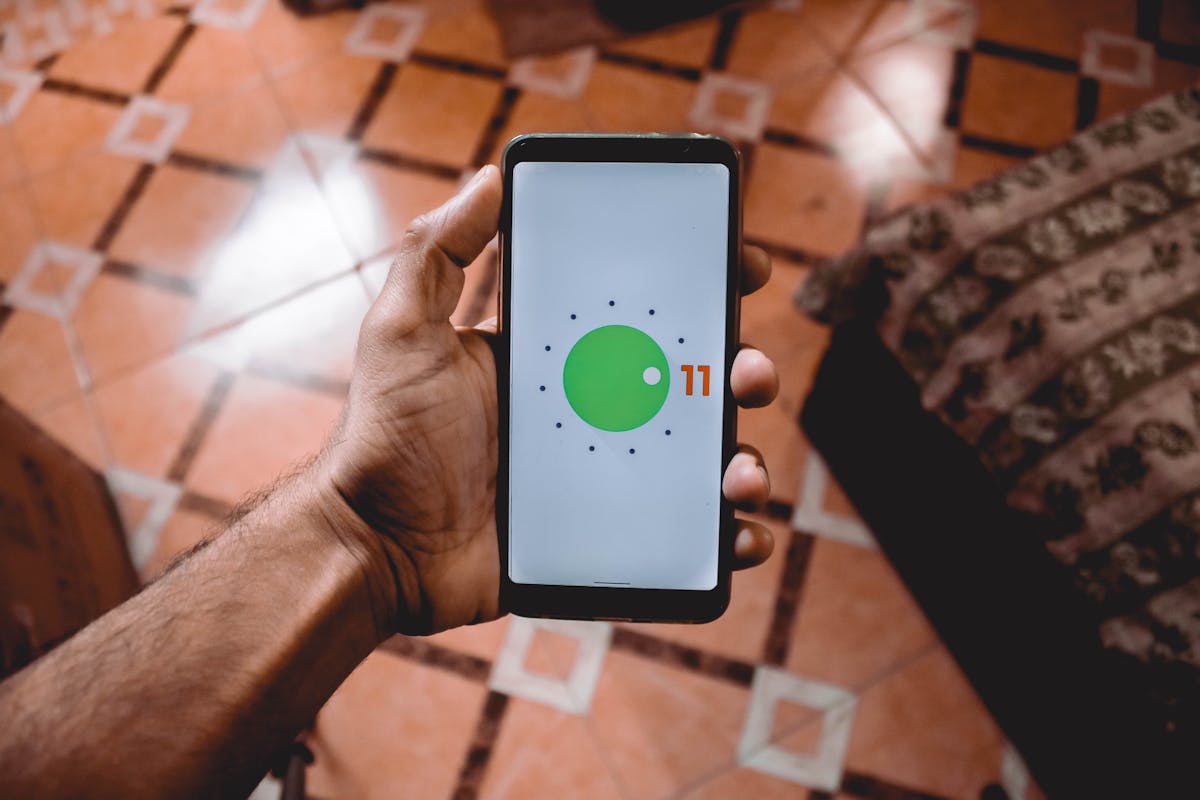
Next, tackle cached data. Apps store temporary files that can grow to gigabytes over time. Clearing them does not delete your accounts or messages. For step-by-step help, our guide on how to clear cache on Android shows exactly where to tap.
Photos and videos are usually the biggest space hogs. Move them to a cloud service so the originals stay safe while the local copies come off your phone. If you are new to online storage, our beginner guide on what cloud storage is explains how it keeps your files safe and reachable.
Keep Your Phone Clean Going Forward
Once you free up storage on Android, a few habits keep it that way. Turn on automatic photo backup, review your apps every couple of months, and empty your downloads folder now and then. A five minute cleanup each month prevents the dreaded “storage full” message from ever returning. Setting a small reminder on your calendar makes the habit stick, and you will barely notice the effort once it becomes routine.
Watch out for large video files, offline maps, and podcast downloads, since these grow quietly in the background. Deleting an offline movie you already watched can free up storage on Android instantly, often recovering a full gigabyte or more in a single tap.
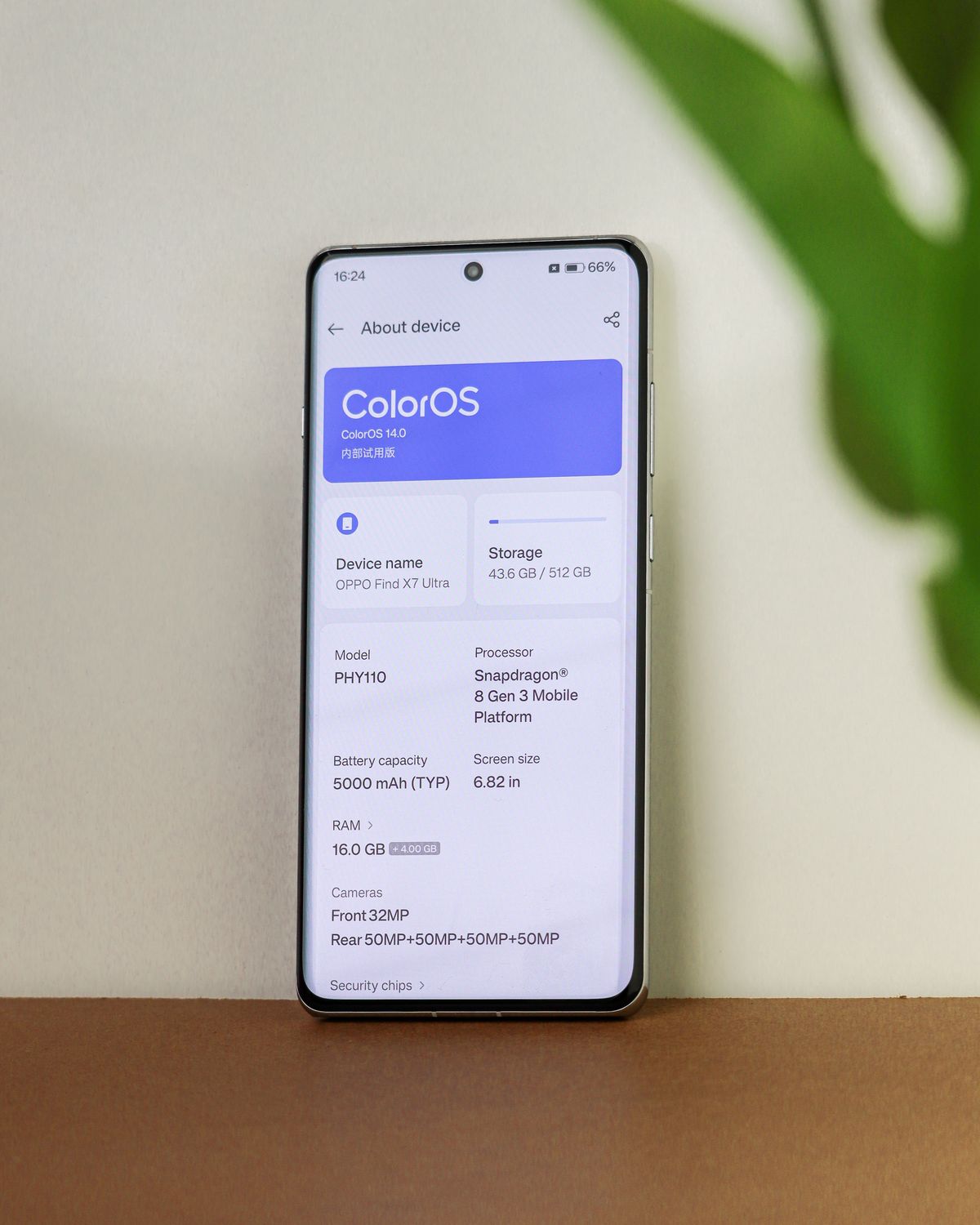
If you want the official steps for your exact phone model, Google keeps clear help pages. Every manufacturer arranges menus a little differently, but the ideas are the same across brands like Samsung, Google, and Motorola. You can read them directly at the Google Android support site whenever you need extra guidance.
Quick Recap
To wrap up, you can free up storage on Android by deleting unused apps, clearing cached files, and moving photos to the cloud. Use the built-in Storage tool to see what is taking up room, then remove the biggest items first. Turn on automatic backup and do a quick monthly cleanup to stay ahead of the problem. The more regularly you free up storage on Android, the faster and more reliable your phone will feel. Try these steps today, free up storage on Android in minutes, and enjoy a device that always has room to spare.

Daniel Vivone is a technology writer who specializes in making complex tech simple for everyday readers. At iotechblog, he covers digital security, artificial intelligence, smartphone tips, and beginner-friendly software tutorials, turning confusing concepts into clear, practical, step-by-step guides. Passionate about helping people use technology more safely and confidently, Daniel focuses on real-world advice that anyone can follow, no technical background required.