
Your phone is probably carrying hundreds, maybe thousands, of photos it was never meant to hold forever. Mine hit “storage full” right as I tried to take a picture of my kid blowing out birthday candles, which is exactly the moment you do not want to be deleting old screenshots in a panic. Moving photos to a computer fixes that, and it gives those pictures a safe second home.
There are several ways to do it, and the right one depends on whether you have a cable handy, how many photos you are moving, and whether you want it to happen automatically from now on. I will walk through each, so you can pick the one that fits your setup instead of fighting the one that does not.
Why Move Them at All
Two reasons, really. The first is space: photos and videos are the biggest space-hogs on most phones, and clearing them is the fastest way to stop those “storage full” warnings. The second is safety. A phone can be lost, stolen, or dropped in a sink, and if your only copy of a photo lives on it, that photo is one accident away from gone.
A copy on your computer is a backup you control. Pair it with a cloud backup and your memories survive almost anything. If you want fewer of those storage warnings on an iPhone specifically, our guide on how to free up storage on iPhone covers the cleanup side in detail.
The USB Cable Way
The old-fashioned cable method is still the most reliable for big batches. Plug the phone into the computer with its charging cable, and on the phone tap the notification to allow file transfer, sometimes labeled “transferring files” or “PTP.” On Windows, the phone shows up in File Explorer like a drive; on a Mac you may need the Photos app or a small helper tool.
From there, open the phone’s storage, find the folder with your photos, usually called DCIM, and drag the ones you want into a folder on the computer. It is not glamorous, but it is fast and it does not depend on Wi-Fi or an account, which makes it my go-to when I am moving a whole year of pictures at once.
The Cloud Way
If you would rather not deal with cables, the cloud handles it quietly in the background. Apps like Google Photos or iCloud upload your pictures automatically, and then you simply sign in on the computer and download whatever you want. Set it up once and your photos appear on every device without you lifting a finger.
This is the most hands-off option, and it doubles as a backup, which is why I lean on it day to day. If the whole idea of the cloud still feels hazy, our guide on what cloud storage is and how it works clears it up before you commit.
Wireless and App Options
Between cable and cloud sit a few handy middle paths. Bluetooth works for a small handful of photos, though it is slow for large batches. You can email or message a few pictures to yourself in a pinch. And dedicated transfer apps move photos over your local Wi-Fi without uploading them to anyone’s servers, which some people prefer for privacy.
Apple users have AirDrop for sending photos to a Mac in seconds, and Windows has its own nearby-sharing tools. None of these is better in every case; they are just options for when a cable is not around and you do not want a full cloud setup.
Once They Are on the Computer
Getting the photos across is half the job; finding them later is the other half. Make a few folders by year or event rather than dumping everything into one giant pile, and rename the truly important ones so “IMG_4821” becomes something you can actually search for. Ten minutes of organizing now saves an hour of scrolling in two years.
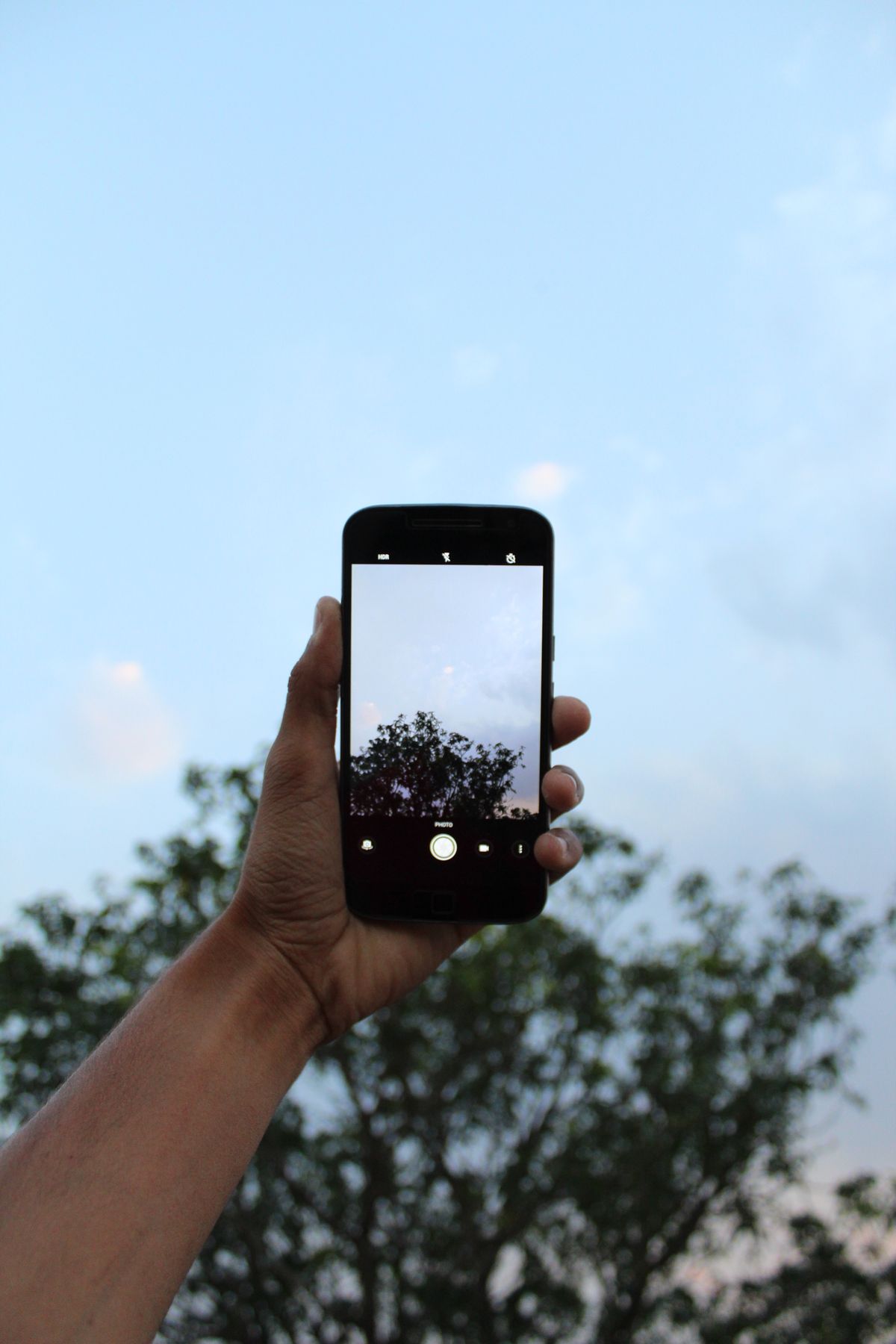
And once the photos are safely copied, you can finally delete them from the phone with a clear conscience and reclaim that space. While you are thinking about your photo habits, our guide on how to take better photos with your phone helps make sure the pictures worth keeping are ones you are proud of.
A Few Last Words
Moving photos off your phone is one of those small chores that pays off twice, freeing up space and protecting your memories at the same time. Use a cable for big batches, the cloud for hands-off automation, or a wireless trick when neither fits. Pick the method that matches your moment, do a little organizing on the other side, and you will never again be deleting screenshots while the candles burn down.
Quick Recap: Transfer photos from your phone to a computer
Once you understand the basics, you will find that transfer photos from your phone to a computer is easier than it first appears. Take it step by step, and transfer photos from your phone to a computer quickly becomes part of your routine. The key to transfer photos from your phone to a computer is a little regular practice rather than trying to learn everything at once. Many beginners are surprised at how approachable transfer photos from your phone to a computer can be with the right guidance.
Remember that transfer photos from your phone to a computer is a skill, and every skill improves the more you use it. If you ever feel stuck, revisit the earlier sections, because transfer photos from your phone to a computer builds on a few simple ideas. There is no need to rush; transfer photos from your phone to a computer rewards patience and a willingness to explore. Keep this guide handy whenever you need a quick reminder about transfer photos from your phone to a computer.
With these fundamentals in place, transfer photos from your phone to a computer will feel far more natural over time. Do not be afraid to experiment, since hands-on practice is the fastest route to transfer photos from your phone to a computer. For more detailed reference, a detailed overview of smartphones is a trustworthy resource.

Daniel Vivone is a technology writer who specializes in making complex tech simple for everyday readers. At iotechblog, he covers digital security, artificial intelligence, smartphone tips, and beginner-friendly software tutorials, turning confusing concepts into clear, practical, step-by-step guides. Passionate about helping people use technology more safely and confidently, Daniel focuses on real-world advice that anyone can follow, no technical background required.